Woocommerce Logo

Product Attributes on Shop And Archive Pages for WooCommerce

Show product attributes on shop, category and other archive pages.

Installation

Automatic Installation from WordPress Dashboard

  1. Login to your admin panel
  2. Navigate to Plugins -> Add New
  3. Search Product Attributes on Shop And Archive Pages for WooCommerce
  4. Click install and activate respectively.

Manual Installation from WordPress Dashboard

  1. Download the plugin. A ZIP file will be downloaded.
  2. Login to your site\’s admin panel and navigate to Plugins -> Add New -> Upload.
  3. Click choose file, select the plugin file and click install

Setup and Configuration

Once the plugin is installed and activated, you will notice a new item under WooCommerce > Attributes on Shop.

General Settings

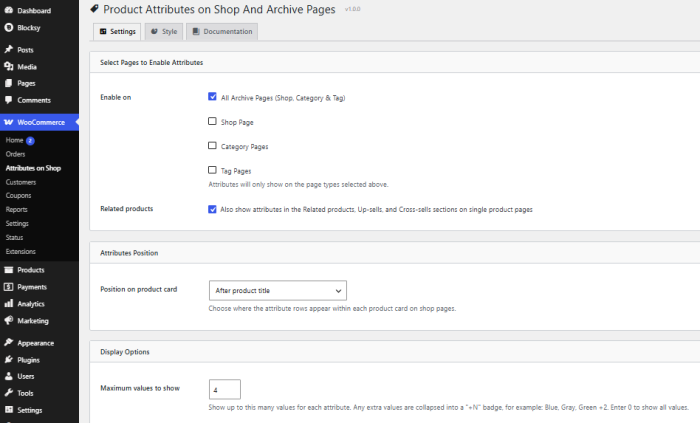
In the general settings, you can customize the following options:

  • Display attributes on specific listing pages or all listing pages.
  • Choose from eight different positions for the description: (before title, after title, before reviews, after reviews, before price, after price, before add to cart button, after add to cart button)
  • Select to show the product attributes on related products section on Single product page or not!
  • Increase/Decrease number of values to show in each attribute
Product Attributes on Shop And Archive Pages for WooCommerce General Settings Page

Style Settings

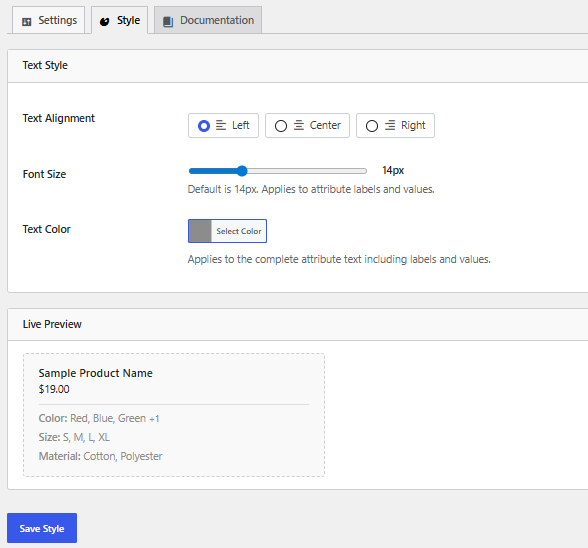
Choose text alignment, Color and Font Size from this tab.

Product Attributes on Shop And Archive Pages for WooCommerce Style Settings Page

Attributes Checkbox on Product Settings Page
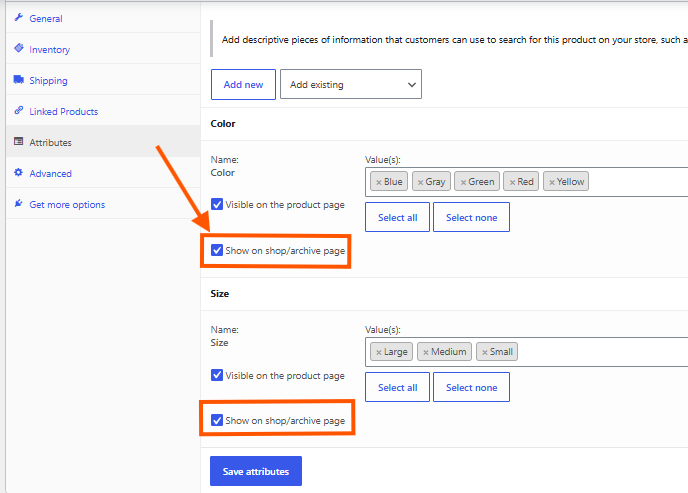
After installation, you will see a new custom checkbox in Attributes tab on the product page. This feature allows you to show attribute on that specific product card that will be displayed on shop pages and other archive pages according to your settings.

Product Attributes on Shop And Archive Pages for WooCommerce Product Settings Page

Frequently Asked Questions

Open any product, go to the Attributes tab under Product Data, and you will see a new checkbox labeled “Show on shop/archive page” next to each attribute. Tick it for the attributes you want to display, then save the product. Only the attributes you select will appear, so you stay in full control of every product individually.
Yes. The attributes display in exactly the same order you set them in the product’s Attributes tab. If you drag an attribute to a new position there, the shop page reflects that change automatically, so you never have to manage the order in two separate places.
Absolutely. The settings page lets you place the attribute rows in eight different positions, including before or after the title, the rating, the price, or the Add to Cart button. You can also decide which page types display the attributes, such as the main shop page, category pages, and tag pages.
You can set a maximum number of values to show per attribute. Any values beyond that limit are summarized neatly with a count, for example “Blue, Gray, Green +2”, which keeps your product cards clean and easy to scan. If you prefer to show everything, simply set the limit to zero and all values will appear.
Yes. There is a dedicated option that extends the attribute display to the Related Products, Up Sells, and Cross Sells sections on single product pages. You can turn this on or off at any time, and the attributes there use the same position and styling you chose in the settings.

© 2026 owaisfdev (IAMOWAIS). All Rights Reserved